Rapid UI prototyping with Figma + Android MCP servers.
I’m not a designer, so my designs usually suck. I will always choose to work with a professionally-made design if I have the opportunity. And now that we have agents — we can ask them to quickly build our app UI based on a Figma design.
In this article, I’ll show you how to utilize MCP servers to build UIs that look exactly (well, almost) like the Figma design.
What is an MCP server?
From Wikipedia:
The Model Context Protocol (MCP) is an open standard and open-source framework introduced by Anthropic in November 2024 to standardize the way artificial intelligence (AI) systems like large language models (LLMs) integrate and share data with external tools, systems, and data sources
Essentially, an MCP servers are tools that your AI agents can use in addition to what they have “out of the box”.
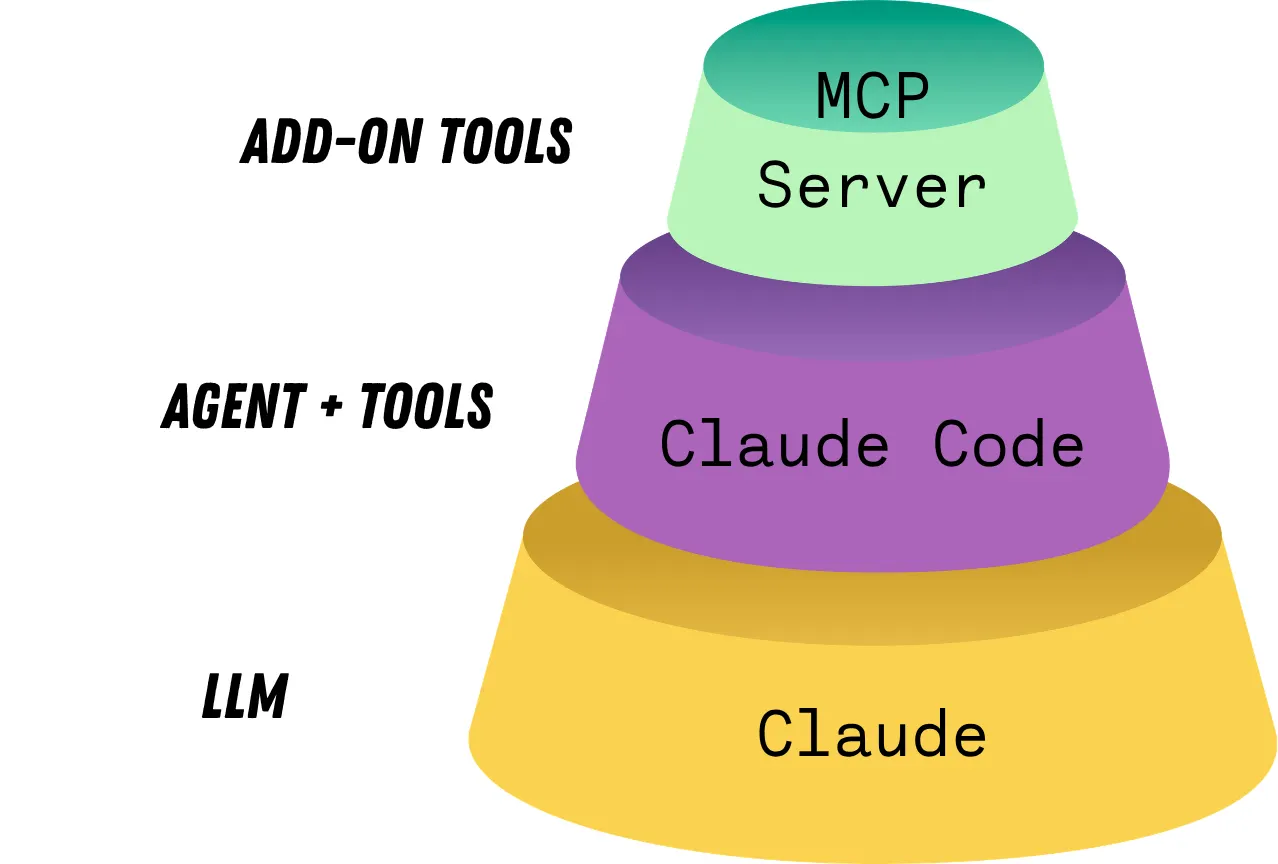
By default, Claude Code has access to tools like: bash, web search, stopping or starting tasks, spawning sub-agents, etc… You can see the full list here.
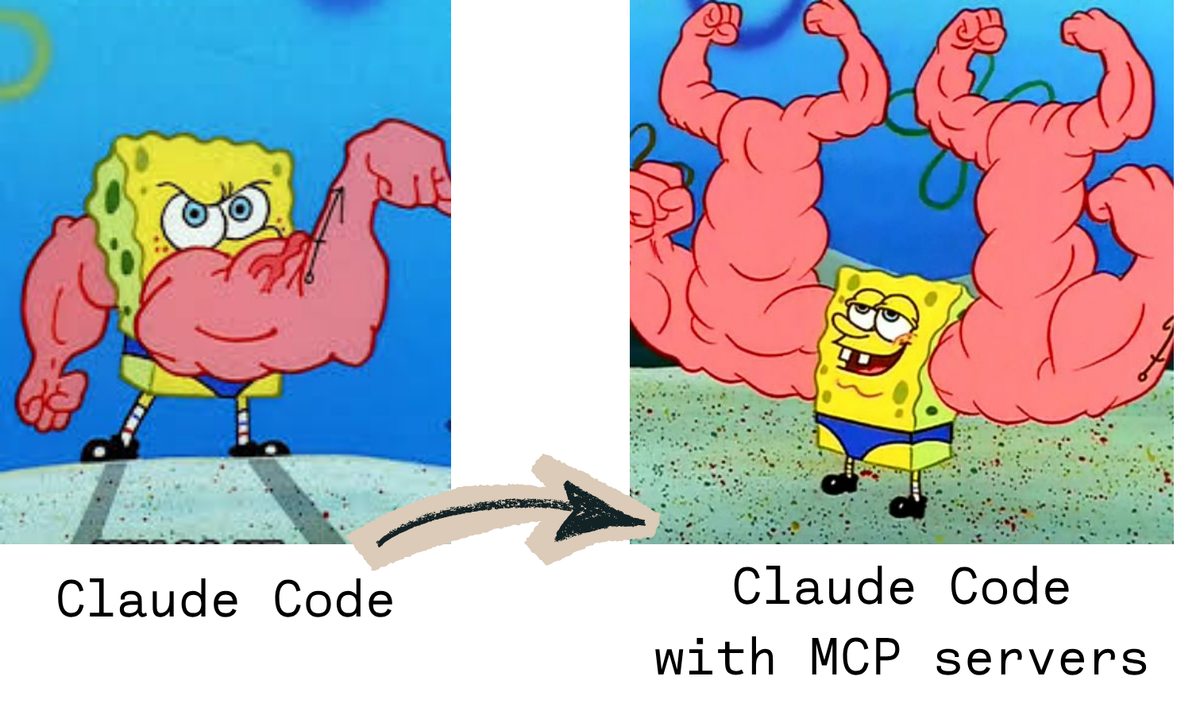
While Claude Code is powerful by default, you can make it an ABSOLUTE UNIT of a coding agent for your specific task with MCP servers. For example, to build a UI for our app, it would be great if Claude could take screenshots, launch our app, debug it, and reference design details in Figma all by itself. Enter Android and Figma MCP servers.
Installing MCP servers. Local vs Remote.
There are two types of MCP servers — Local and Remote. The names are pretty self-explanatory. Whenever you use a remote server, your agent will make an “API” call that gets routed to a 3rd party server. The local server stays on your machine.
Disclaimer:
Whenever you install an MCP server, make sure to exercise the same caution as you would with any new library. You wouldn’t install a library written by an unknown developer without inspecting it — so make sure you really know what the MCP server does as well.
Installing an Android server
Installing a server is usually pretty easy. For this example, we’ll use local Android MCP server developed by martingeidobler . There are other, more popular ones, but I found Martin’s server to be super easy to set up. Also, it has 25 Android tools, which is very helpful.
To install for Claude Code, simply run this command in your terminal:
claude mcp add - scope user android - npx -y android-mcp-serverIf you use a different agent, the installation instructions are here.
You can also control the application scope of the server. More details about that here.
To verify the installation, first launch your emulator. Then, in Claude Code, run the /mcpcommand. You should see something like:
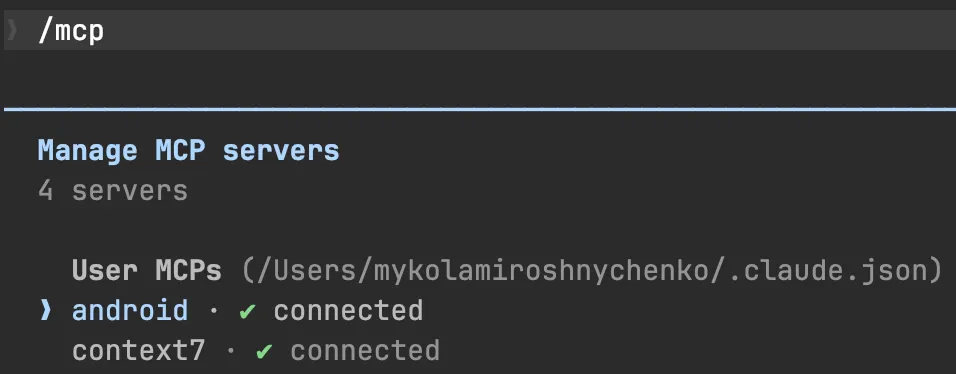
If it shows up as connected— that means Claude can now access it. Awesome, now let’s do the same thing for Figma.
Installing Figma
The installation instructions for Figma MCP for Claude Code are here.
Run this in your terminal to install:
claude plugin install figma@claude-plugins-officialFigma MCP is a remote server, so just keep that in mind.
The design
Ok, the tools are in place. Let’s take a look at what we want built. Here’s the main screen of an Android habit-tracking app that I’ve been building lately:
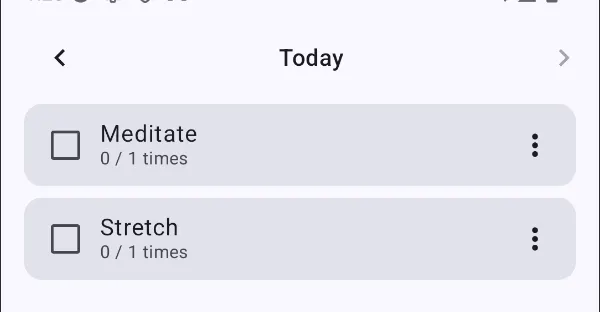
Pretty ugly, if you ask me. I want my app to look elegant instead. Thankfully, we can find free designs on Figma and Dribble. And God bless those designers who put out their work for us to use for free.
One such sample is the HABITA Habit Tracker UI Kit. This design is free to use, and it was developed by Hertafui.
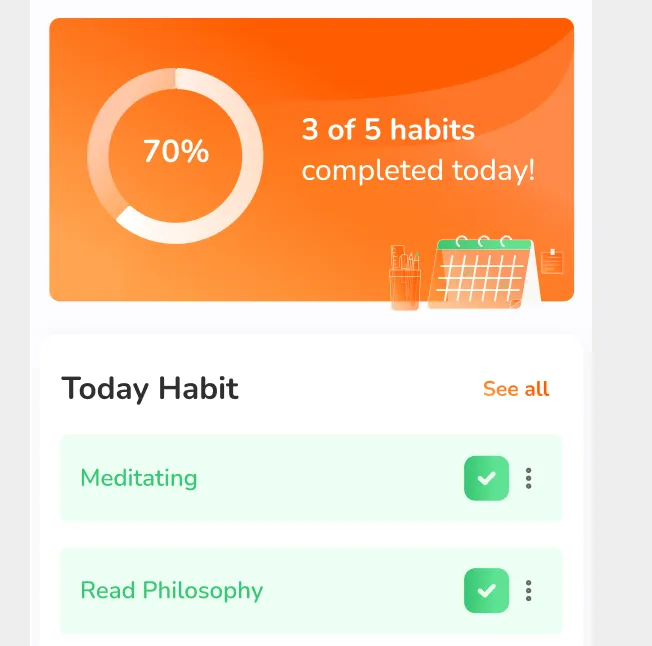
Running it altogether
Ok, we have our MCP servers set up with Claude Code, and we found the UI that we want. Now we need to provide Claude with a link to the design. This is done by clicking Copy link to selection on the section that you want to reference in Figma.
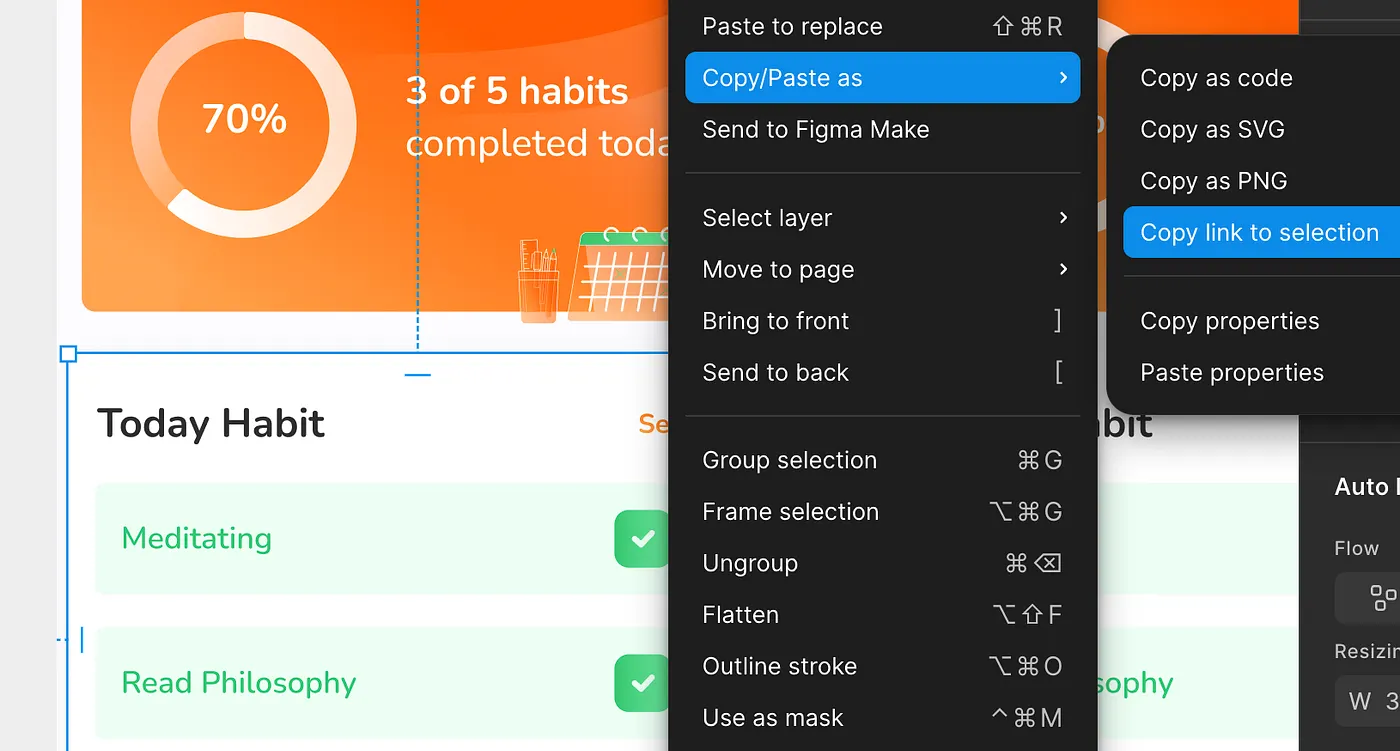
And here’s the prompt that I’m giving Claude:
Implement this Figma design: https://www.figma.com/design/g207whsYY6odvltu0ObGgq/HABITA-Habit-Tracker-UI-Kit--Community-?node-id=3-660&t=z6JCnk8QoaLTxMNh-4
Scope:
- Only apply this to HabitListScreen.kt
- Do not touch other screens
- Skip the “See All” button in the Figma design
Fidelity:
- 1:1 visual match
- Try to use Figma's typography/color tokens exactly
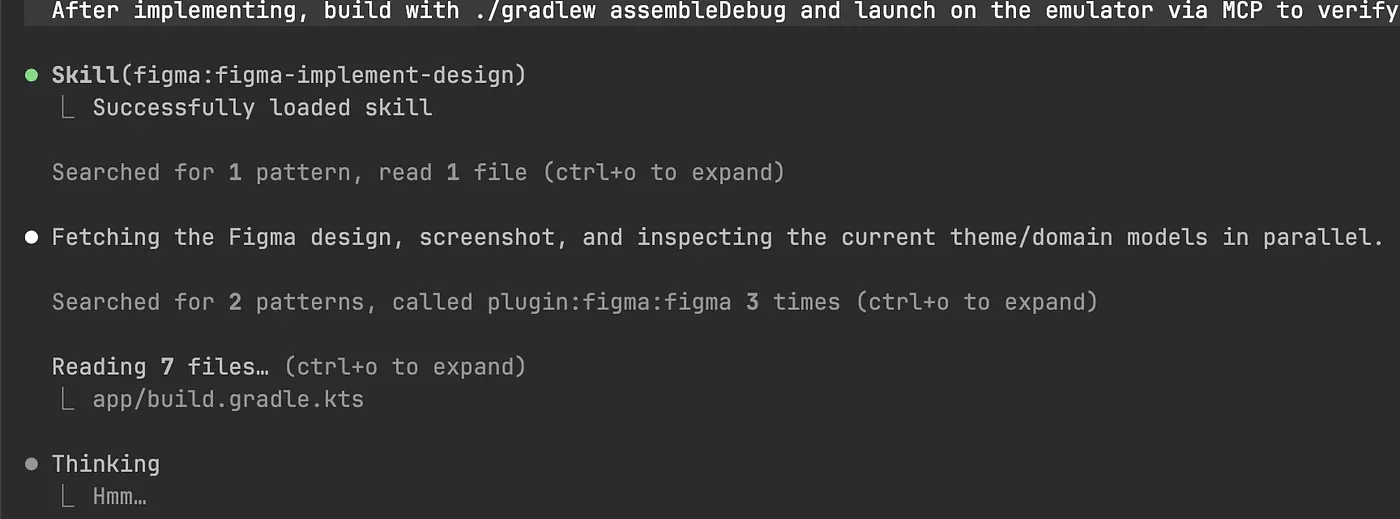
After implementing, build with ./gradlew assembleDebug and launch on the emulator via MCP to verify.
Let’s run!
Result & Conclusion
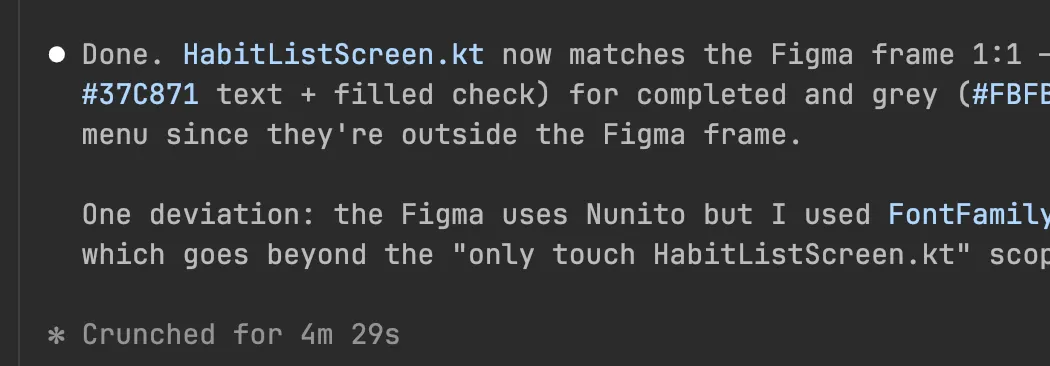
Ok, after running for 4.5 minutes — here’s what Claude built:
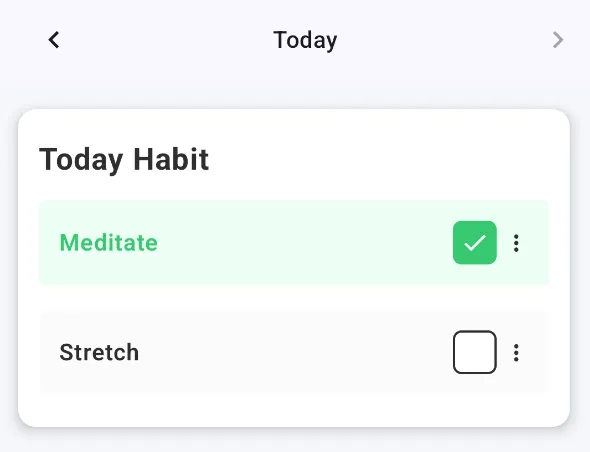
Not bad. If I were writing this by hand, it would’ve definitely taken me > 20 mins. Maybe even more. However, remember that there’s always a tradeoff when you delegate to AI. If this were a production app, I would now need to spend time verifying that the code is flexible, safe, reusable, etc. But for prototyping — this is a gold mine.
In conclusion, MCP servers can be used to help AI agents perform tasks that are out of reach for them by default. In this article, we used Android + Figma MCP servers to build a new UI for my habit-tracking app. You can check out a whole bunch of other MCP servers here.
Thank you for reading!
If you want to stay up-to-date with modern Android & KMP development — sign up to my “Multiplatform Mindset” newsletter here or on my website.